HubSpot Configuration
HubSpot Calling
1. Create HubSpot Calling App
First create an App in your HubSpot account. Detailed HubSpot documentation for build HubSpot apps can be found here https://developers.hubspot.com/docs/apps/developer-platform/build-apps/create-an-app.
Below is an example of what app settings are required
    ```json
    {"uid": "app-CallingAppPrivate",
    "type": "app",
    "config": {
        "description": "Private Calling App for integration with Amazon Connect",
        "name": "Calling App Application",
        "distribution": "private",
        "auth": {
        "type": "static",
        "requiredScopes": [
            "crm.objects.contacts.read",
            "crm.objects.contacts.write",
            "crm.objects.owners.read"
        ],
        "optionalScopes": [],
        "conditionallyRequiredScopes": []
        },
        "permittedUrls": {
        "fetch": [
            "https://api.hubapi.com"
        ],
        "iframe": [],
        "img": []
        },
        "support": {
        "supportEmail": "support@example.com",
        "documentationUrl": "https://example.com/docs",
        "supportUrl": "https://example.com/support",
        "supportPhone": "+18005555555"
        }
    }
    }
    ```
2. Configure Calling Extension
Once you have created and deployed the app to your HubSpot account, you now need to configure the calling extension. Using your API tool (e.g. Postman), send the following payload to HubSpot’s settings API. Ensure you get the APP_ID of your calling app and your app DEVELOPER_ACCOUNT_API_KEY from your HubSpot account. The Amplify url was provided after deploying the cloudformation to your account.
curl --request POST \
  --url 'https://api.hubapi.com/crm/v3/extensions/calling/{appId}/settings?hapikey={developer API Key}' \
  --header 'Content-Type: application/json' \
  --data '
{
  "height": 600,
  "isReady": true,
  "name": "CornerstoneCX",
  "supportsCustomObjects": false,
  "supportsInboundCalling": true,
  "url": "<Amplify URL>",
  "usesCallingWindow": true,
  "usesRemote": true,
  "width": 400
}
3. Set the provider
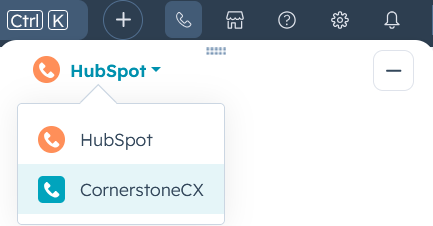
Once you have configured the calling extension you will need to change the calling provider in HubSpot. In your HubSpot account click the phone icon on the top navigation bar. From the dropdown select CornerstoneCX.
HubSpot Email Integration
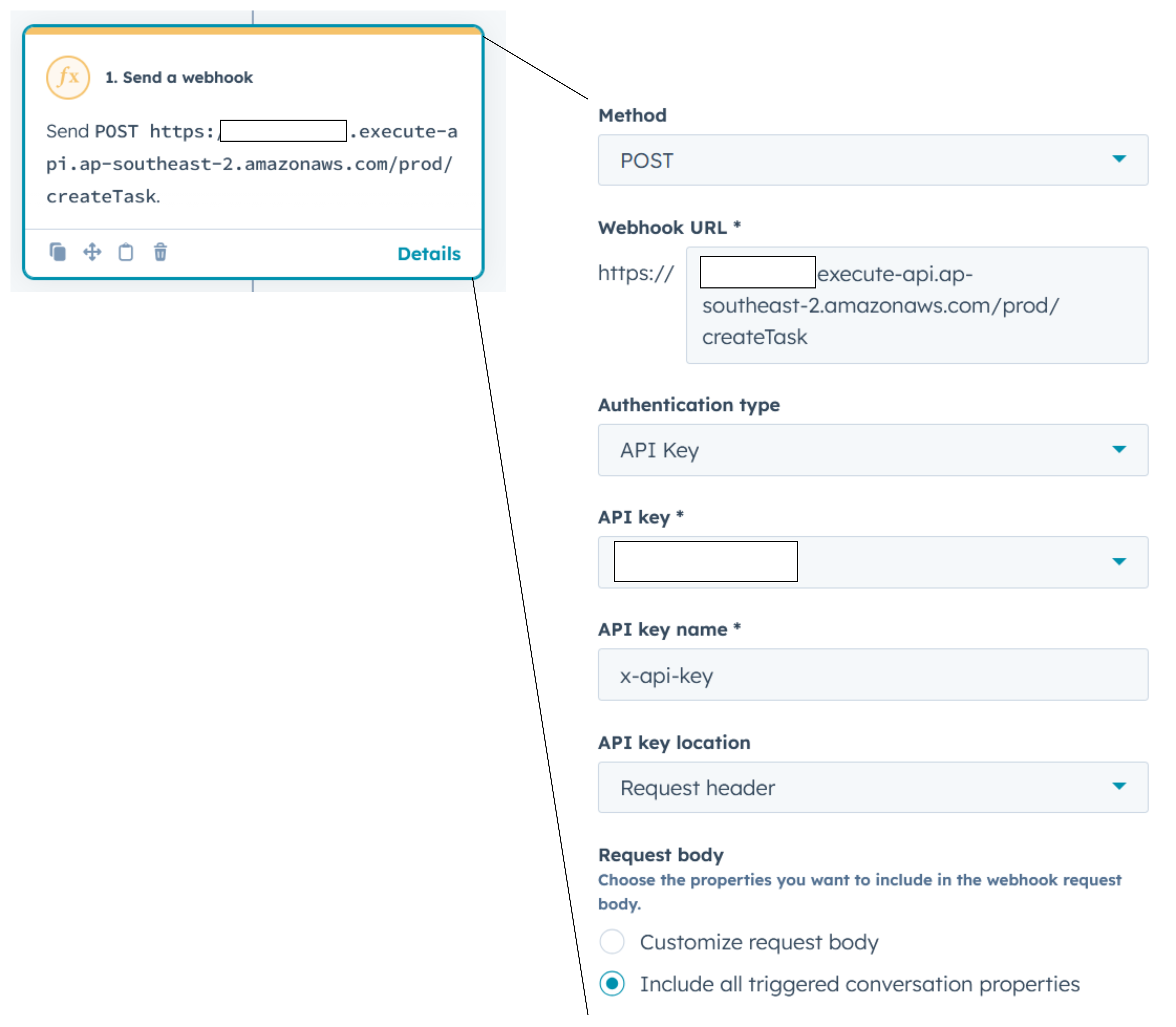
To enable the HubSpot Email to Amazon Connect Task integration a HubSpot Workflow needs to be built. This workflow will be used to trigger a webhook for new inbound emails. This webhook triggers a task creation in Amazon Connect. The task can then be used to prioritise and route email tasks to agents along side the voice and chat queues.
1. Create Workflow in HubSpot account
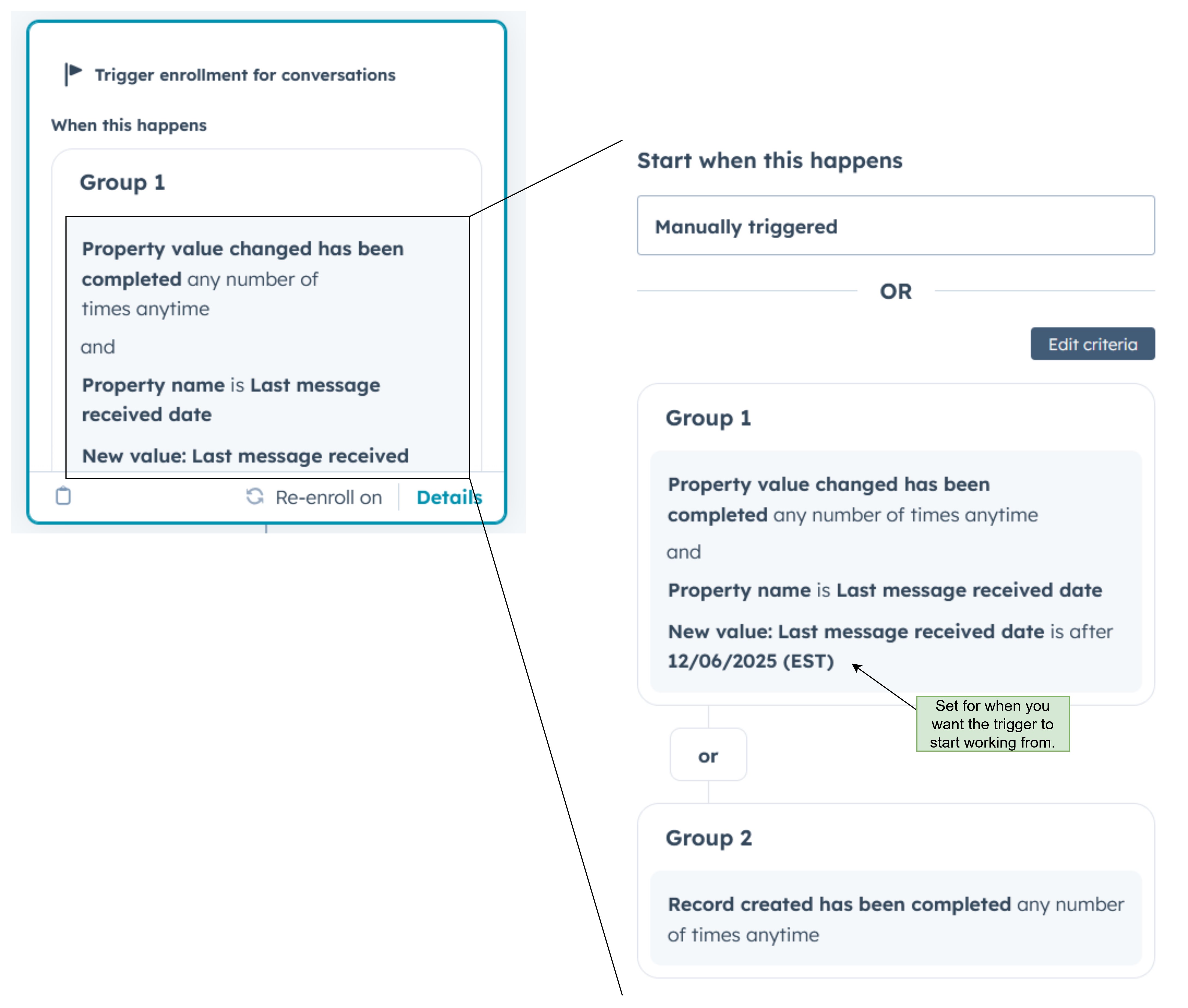
Create a enrollment trigger for new conversations and inbound conversation messages
Next action in the workflow is to send a webhook. The Webhook URL can be found under API Gateways in your AWS account. This was deployed as part of the app creation and is named 'ccx-HubspotIntegrationApi'.