Solution-Deployment
Configuration Requirements
To embed the CCX application, powered by Amazon Connect and Salesforce must be configured to trust and communicate with each other securely. Below is a breakdown of each required configuration steps.
Checklist for Embedding Amazon Connect in Salesforce
| Task | Description |
|---|---|
| ✅ Approved Origin in Amazon Connect | Allows Connect to trust Salesforce domain |
| 🧩 Import CTI Adapter XML into Salesforce | Defines how Salesforce integrates the CCP |
| 👥 Assign Users to Call Center | Users must be linked to the CTI adapter |
| 📞 Create Softphone Layout | Defines screen pop/search and assign to profiles |
| 🧰 Add Softphone to Lightning Utility Bar | Hosts the embedded CCP, via App Manager in the desired Lightning App |
| 🔒 Add CSP Trusted Site | Allows Amazon Connect CCP URL to Trusted Sites |
| 👤 Ensure User Permissions | Call Center access, Lightning App access |
| 🧪 Test CCP | Load CCP in console, test call flows |
Amazon Connect CTI Adapter for Salesforce
To integrate Amazon Connect with Salesforce, use the Amazon Connect CTI Adapter (Open CTI). It embeds the Contact Control Panel (CCP) in Salesforce, enabling click-to-dial, screen pops, call logging, and real-time agent controls.
The CTI Adapter allows you to: - Embed the Amazon Connect CCP via Open CTI - Configure screen pop logic and softphone behavior - Support inbound/outbound calling and logging
1. Download the CTI Adapter Package
- GitHub repository: https://github.com/amazon-connect/amazon-connect-salesforce-cti
- The call center XML is in: ./callCenters/AmazonConnectLightningAdapter.callCenter-meta.xml
2. Import CTI Adapter XML into Salesforce
Summary: Import the CTI adapter into Salesforce as a Call Center definition, then review and save.
Steps:
- Salesforce Setup → Call Centers
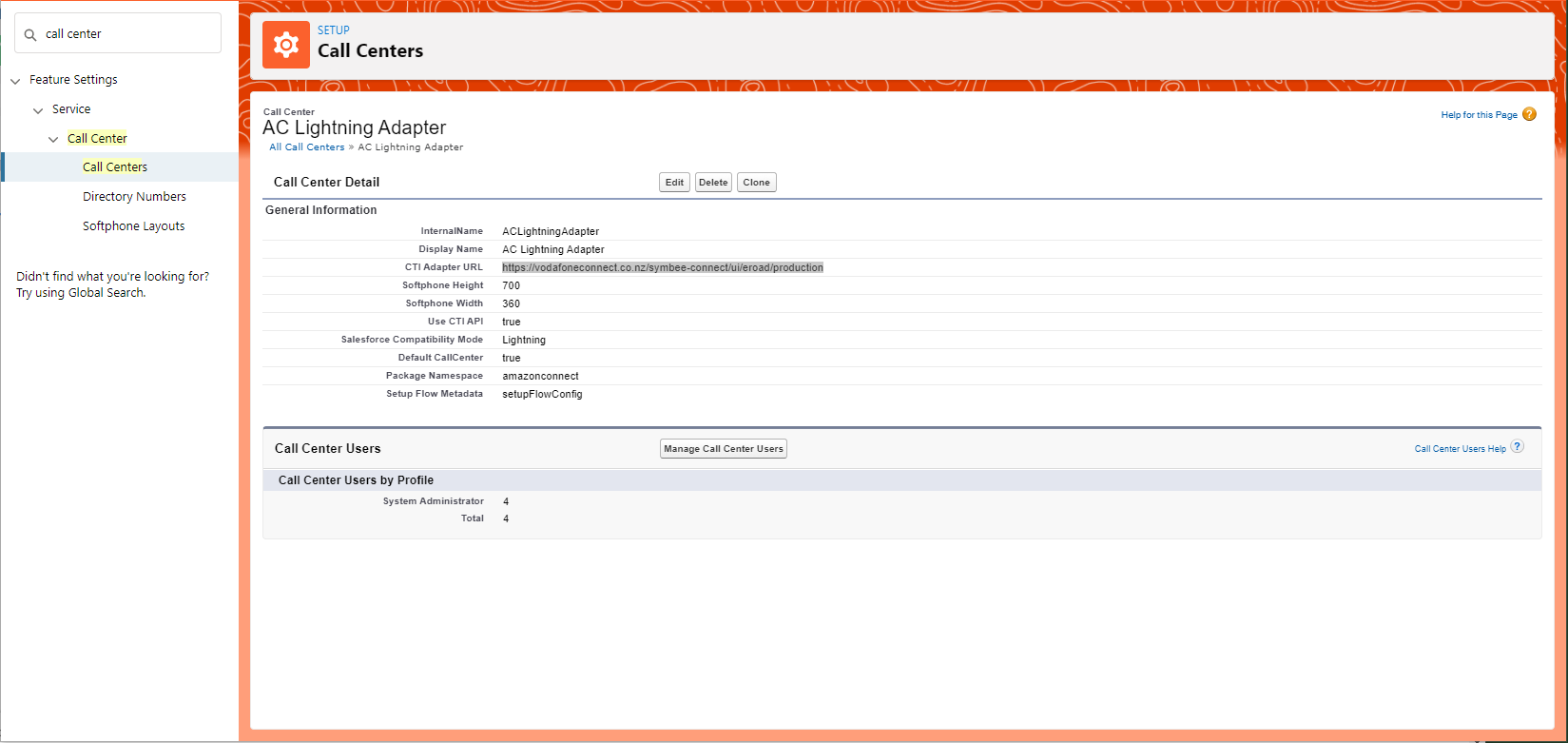 - Click “Import” and upload the CTI Adapter XML
- Review the adapter name/version/description → Save
- Click “Import” and upload the CTI Adapter XML
- Review the adapter name/version/description → Save
You can source the XML from your S3 bucket or from Amazon’s repo above. Example CCP URL (Amplify-hosted adapter, if applicable): https://main.dunrgdztlibez.amplifyapp.com?isdtp=vw
3. Assign Users to the Call Center
Summary: Link Salesforce users (agents) to the imported CTI Call Center.
Steps: - Setup → Call Centers → select your Call Center → Manage Call Center Users - Add More Users → select users → Add to Call Center
4. Create a Softphone Layout
Summary: Define softphone behavior (screen pops, logging) and assign to user profiles.
Steps:
- Setup → Softphone Layouts → New → Name (e.g., AmazonConnectLayout)
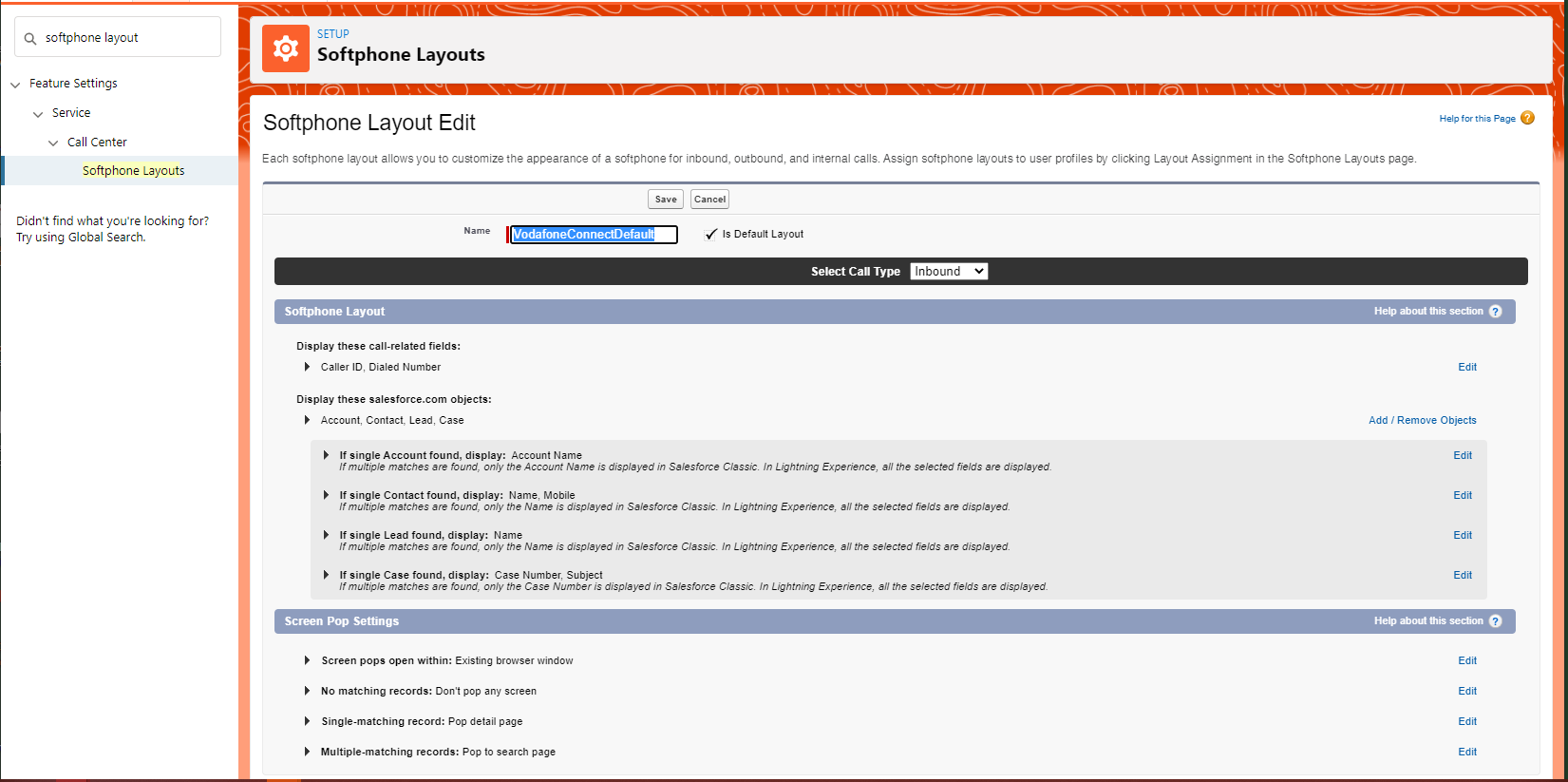 - Configure:
- Screen pop on incoming calls (e.g., pop Contact)
- Search criteria (e.g., by phone number)
- Display options and logging behavior
- Assign to appropriate profiles → Save
- Configure:
- Screen pop on incoming calls (e.g., pop Contact)
- Search criteria (e.g., by phone number)
- Display options and logging behavior
- Assign to appropriate profiles → Save
5. Add Softphone to Lightning Utility Bar
Summary: Embed the CCP in your Lightning App via the Utility Bar.
Steps:
- Setup → App Manager → find your Lightning App (e.g., Service Console) → Edit
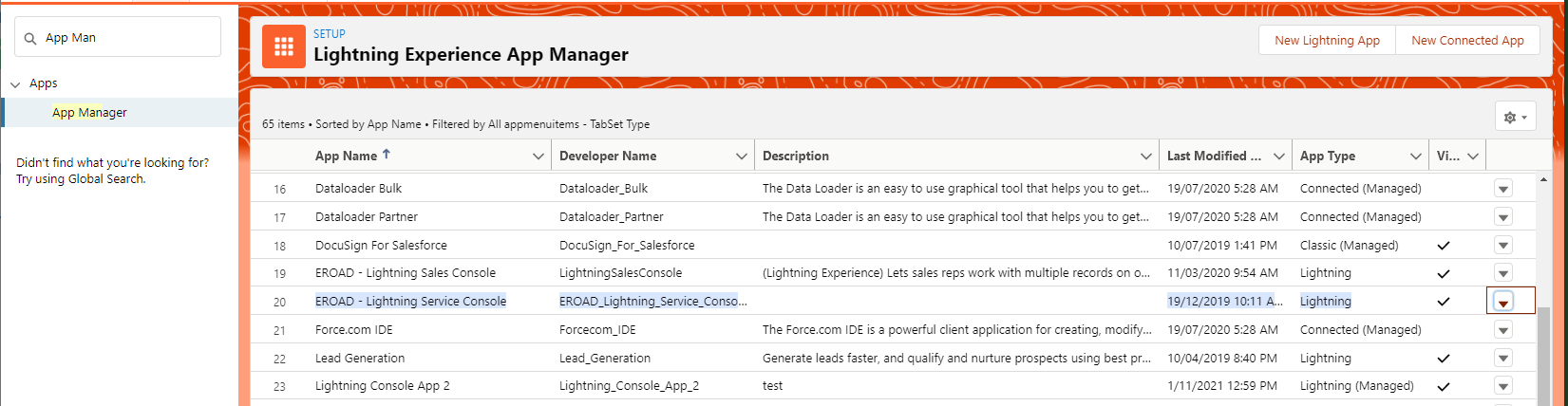 - Utility Bar → Add → Open CTI Softphone
- Label: Amazon Connect; set panel size (e.g., 340 × 600) → Save
- Utility Bar → Add → Open CTI Softphone
- Label: Amazon Connect; set panel size (e.g., 340 × 600) → Save
6. Approved Origins in Amazon Connect
Summary: Allow Salesforce and your app domains to load the CCP by adding Approved Origins in Amazon Connect. (Often auto-configured by your deployment.)
Steps: - Amazon Connect console → your instance → Approved origins
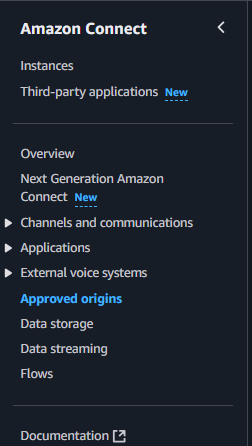

- Click Add an origin
- Add your Salesforce domain (e.g., https://
.lightning.force.com) - Add your Amplify Application domain (e.g., https://main.
.amplifyapp.com) - Click Save
7. Add Salesforce CSP Trusted Site
Summary: Trust the Amazon Connect CCP URL (iframe embedding).
Steps:
- Setup → CSP Trusted Sites → New Trusted Site
- Name: AmazonConnectCCP
- URL: https://main.
8. Ensure User Permissions
Summary: Confirm agents have access to the Call Center, Lightning App, and the Softphone Layout.
Steps: - Assign users to the Call Center - Ensure access to: - The Lightning App with Utility Bar Softphone - The Softphone Layout - Add any required Open CTI permissions (via profiles/permission sets)
9. Test the CCP
Summary: Verify the CCP loads and call flows behave as expected.
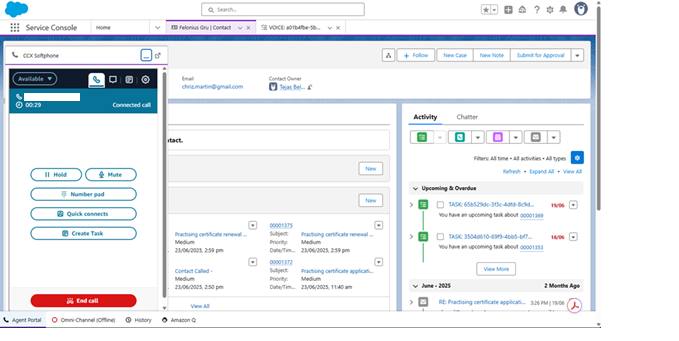
Steps: - Log in as an assigned user → open the Lightning App - Confirm the Amazon Connect CCP loads - Test: - Inbound screen pops - Outbound dialing - Call logging/notes - Watch browser console for CSP or iframe errors
Salesforce Lambda API Integration
Integrate Amazon Connect with Salesforce via Lambda calling Salesforce APIs. Create a Salesforce Connected App providing OAuth 2.0 credentials (Consumer Key/Secret) for server-to-server auth (preferably JWT).
Prerequisites: 1. Create a Connected App 2. Enable OAuth 2.0 and scopes 3. Capture Consumer Key/Secret 4. Configure Lambda to use credentials 5. Gather user access token
Create a Salesforce External Client App
- Setup → App Manager → New Connected App → fill basic info
- Enable OAuth Settings:
- Callback URL: https://login.salesforce.com/services/oauth2/success
- Scopes:
- Access and manage your data (API)
- Perform requests on your behalf at any time (refresh_token, offline_access)
- Optionally: id, profile, email
- Save and wait 2–10 minutes
Capture Credentials
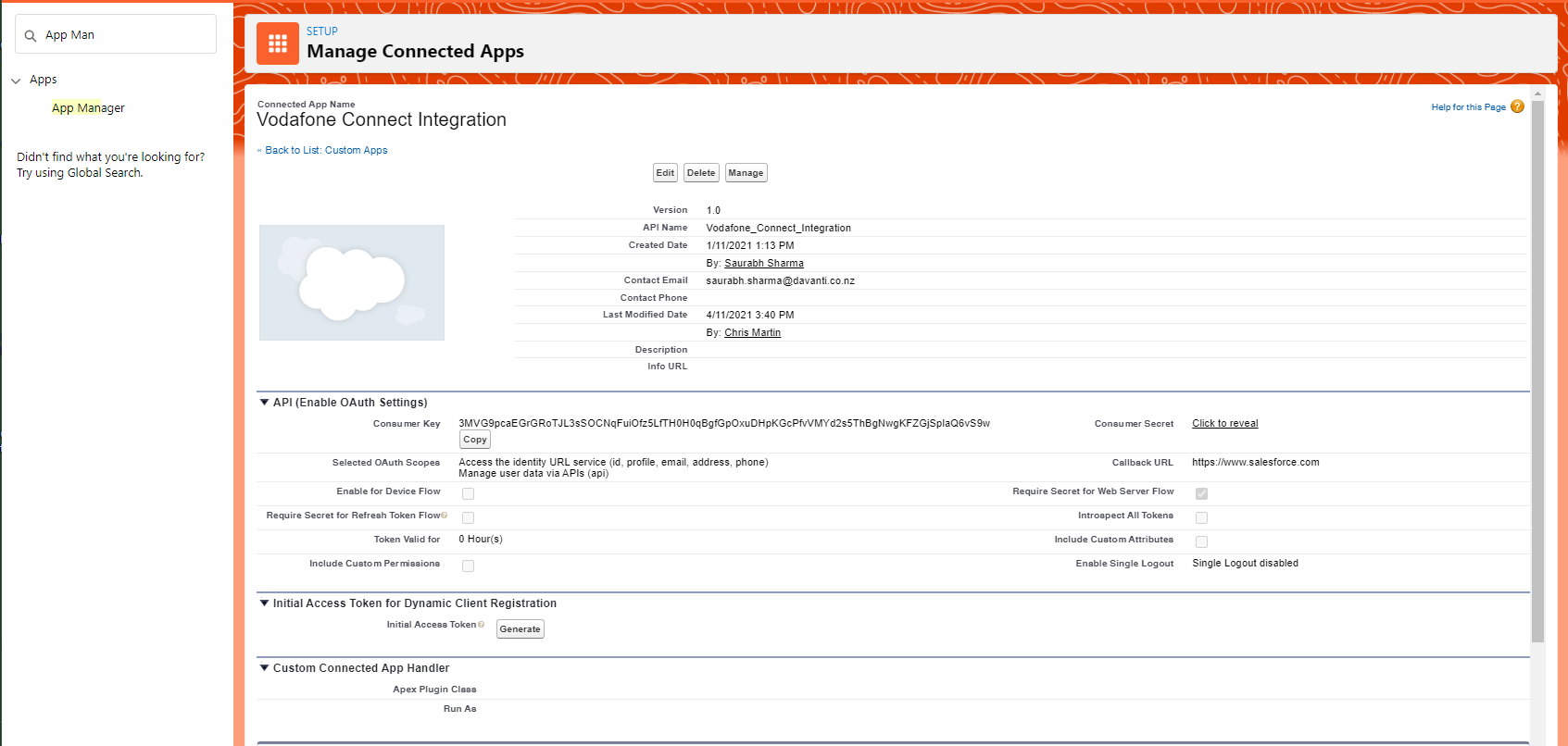
From the app details page:
-
ConsumerKey
-
ConsumerSecret
Login to the Salesforce
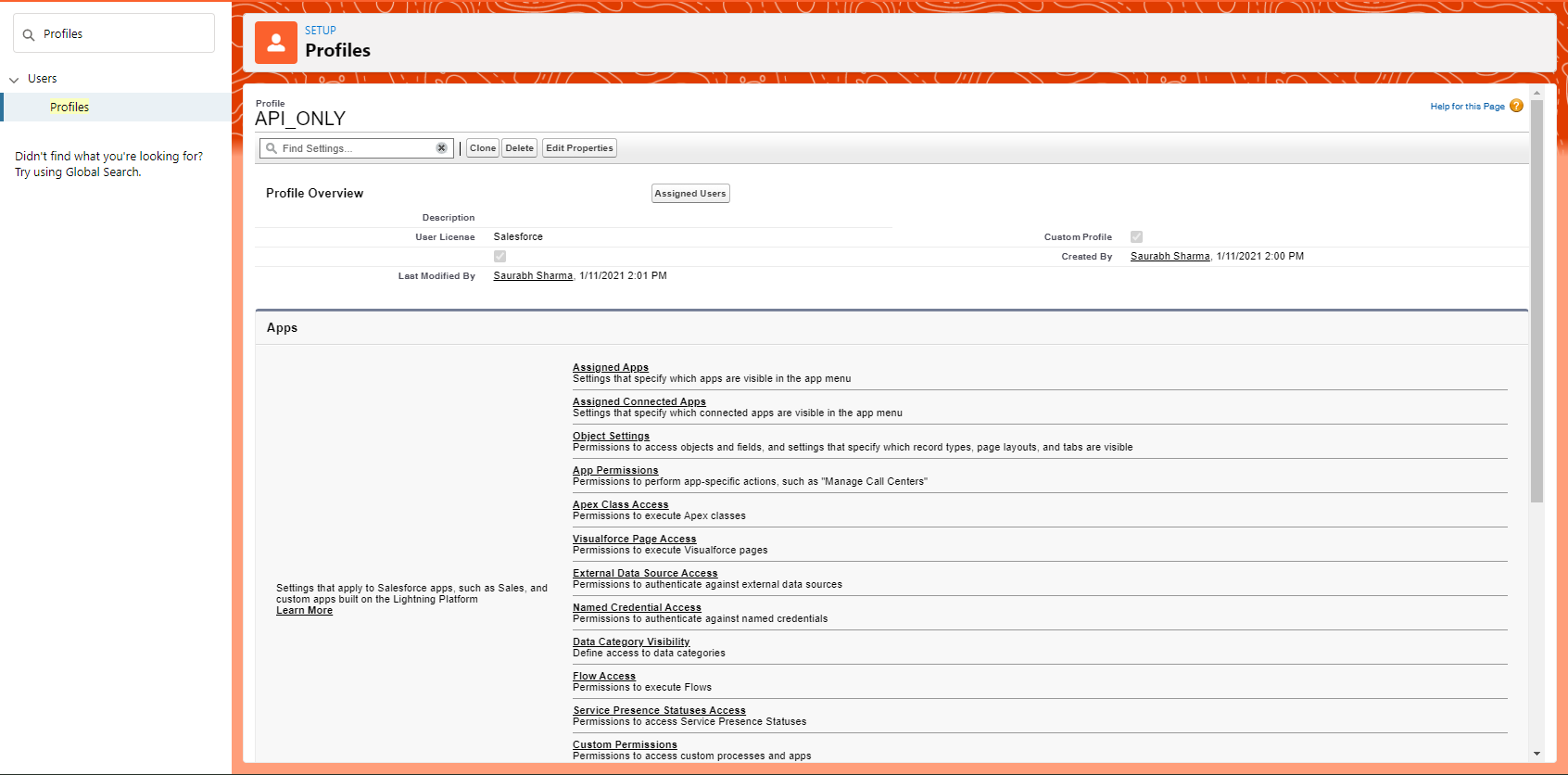
Go to the API user's settings and get an email to reset security token
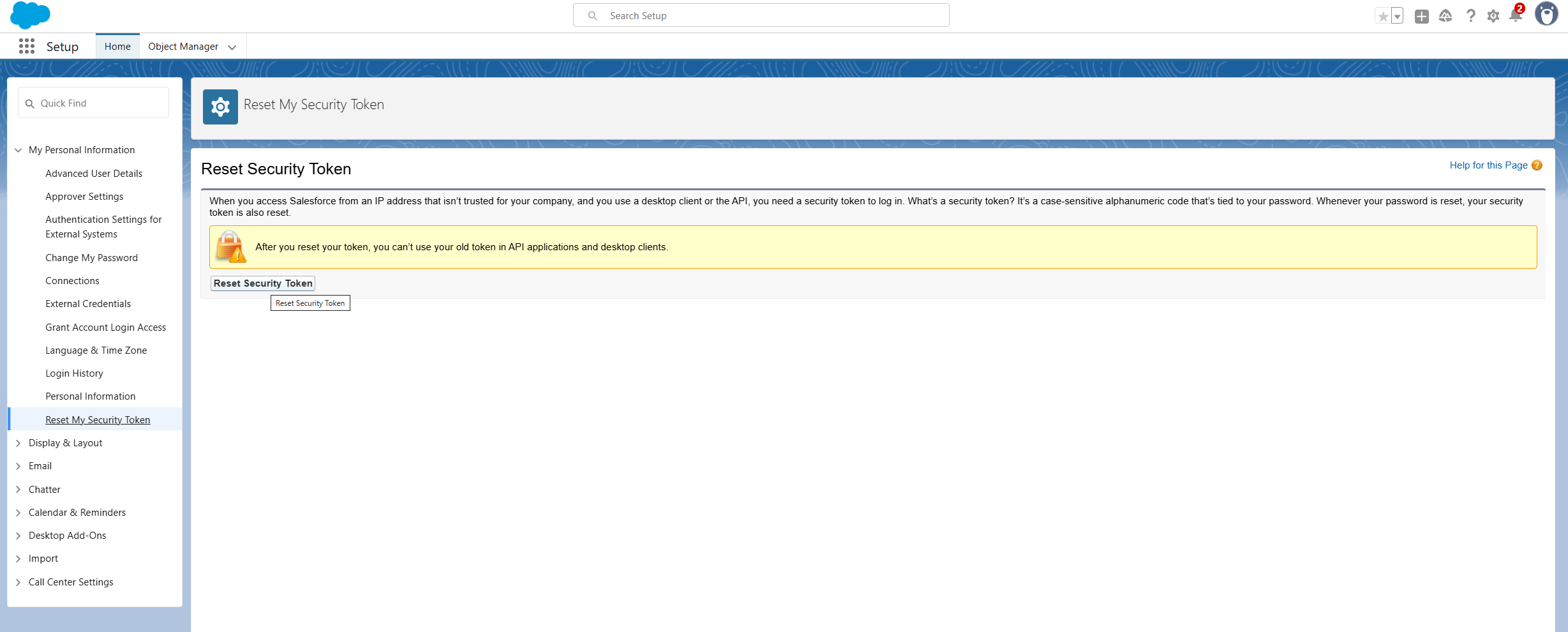
- AccessToken
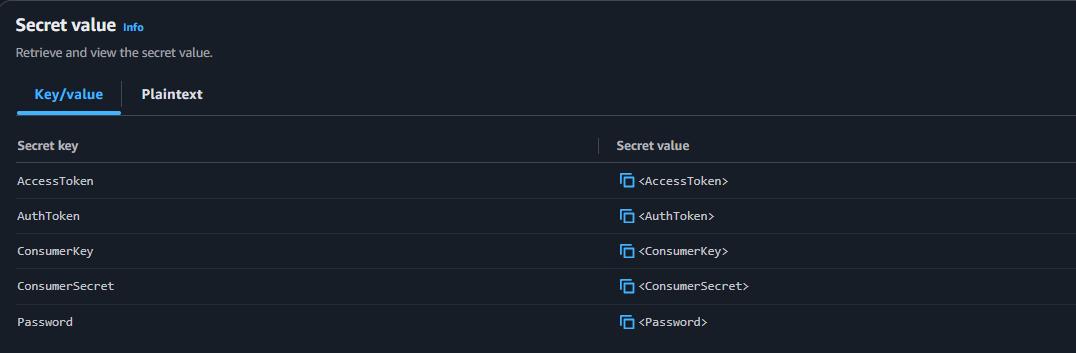
Store in AWS Secrets Manager including the password for the API user selected (e.g., ccx-SalesforceCredentials-[alias]):

Notes: - Use AWS SDK from Lambda and return attributes to Connect for screen pops.